
You may choose to have separate registration numbers for different groups of employees. For example, where you:
- have a number of branches, with each registered separately for Pay As You Earn (PAYE) (employees in each branch must be paid from that branch, not from head office)
- have separate wages records for different employee groups (for example, office and factory)
- pay an employee a salary and a pension
- are a limited company and wish to make PAYE, Pay Related Social Insurance (PRSI) and Universal Social Charge (USC) returns under a separate registration number for directors.
To register an additional Employer PAYE registration number:
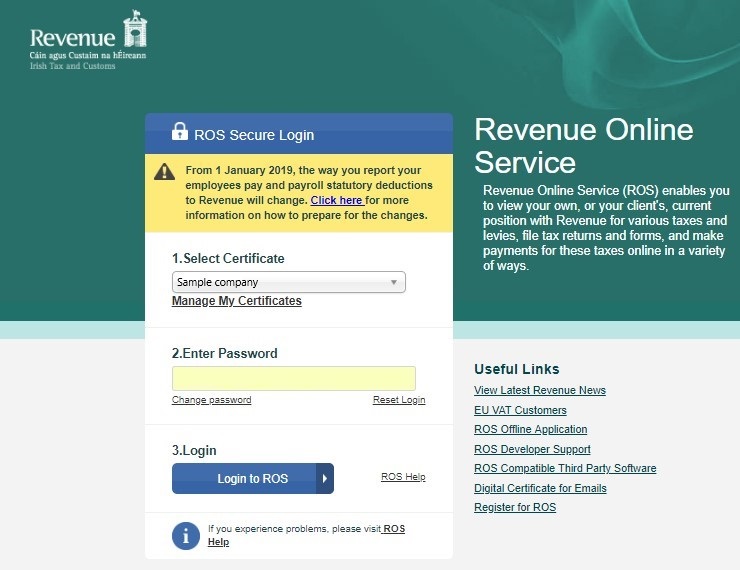
- First log into ROS using your ROS certificate and password:
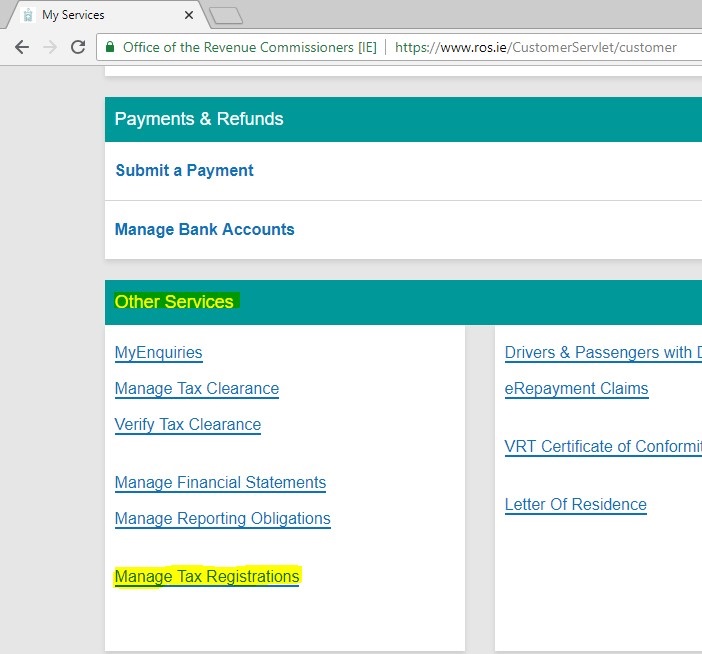
- Once you are logged in, on the My Services tab, scroll down to the Other Services section and click on Manage Tax Registrations:
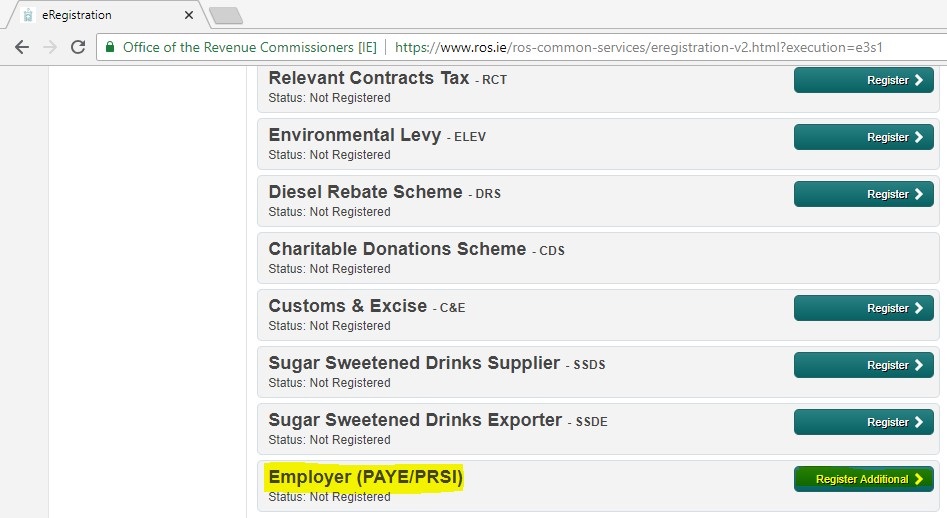
- You will now see a list of your different tax registrations under each of the tax headings. Near the top you will see an active registration for Employer (PAYE/PRSI) - this is the registration you are currently using.
Near the bottom of the list you will see another Employer (PAYE/PRSI) heading with a status of 'Not Registered'.
You will have the option to Register Additional - click this to register your additional registration.
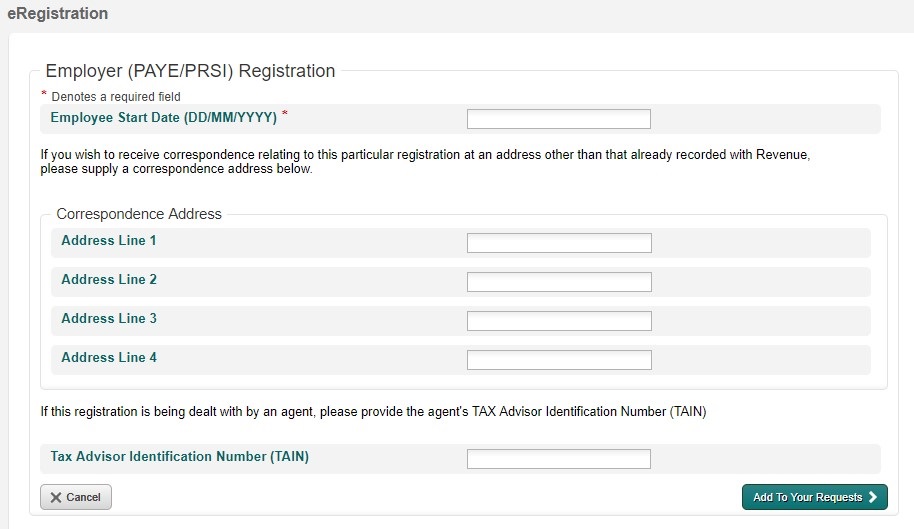
- You will be asked to fill in the Employee Start Date, a separate address if you want the correspondence for this additional registration to be posted by Revenue to a different address to where you currently receive PAYE documents, and a TAIN if this registration is being done by an agent. If you are not a tax agent ,this should be left blank. Once you are done click Add To Your Requests.
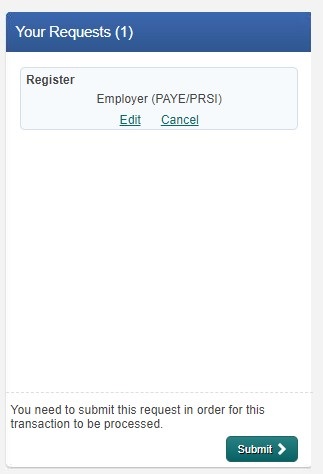
- Once your have submitted your request, you will be brought back to the Manage Tax Registrations screen where you will see you have a new request ready to be submitted on the right. Click Submit.
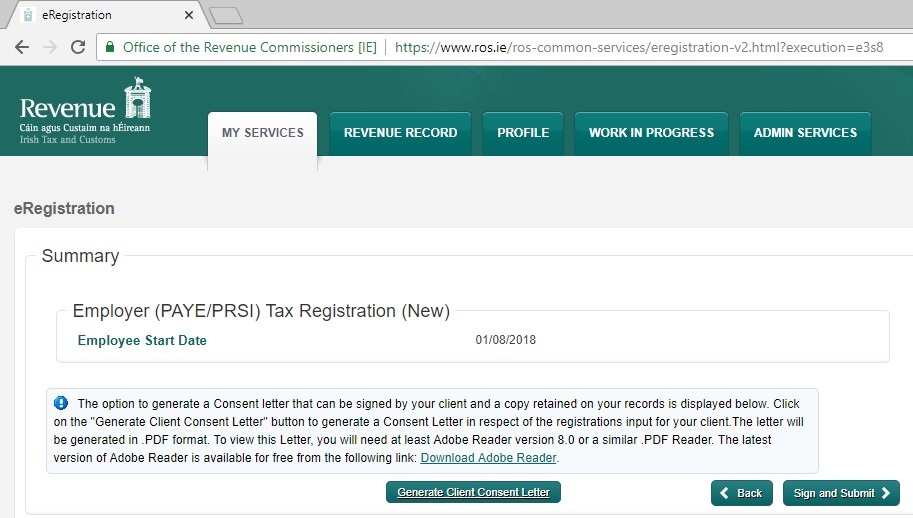
- Once you click Submit, you will be brought to the Summary screen with a summary of the information you have entered. Once everything is correct you can click Sign and Submit.
There is an option for agents to Generate Client Consent Letter, which generates a PDF confirmation to be signed by the tax agent and client. If you are not a tax agent this option should be ignored.
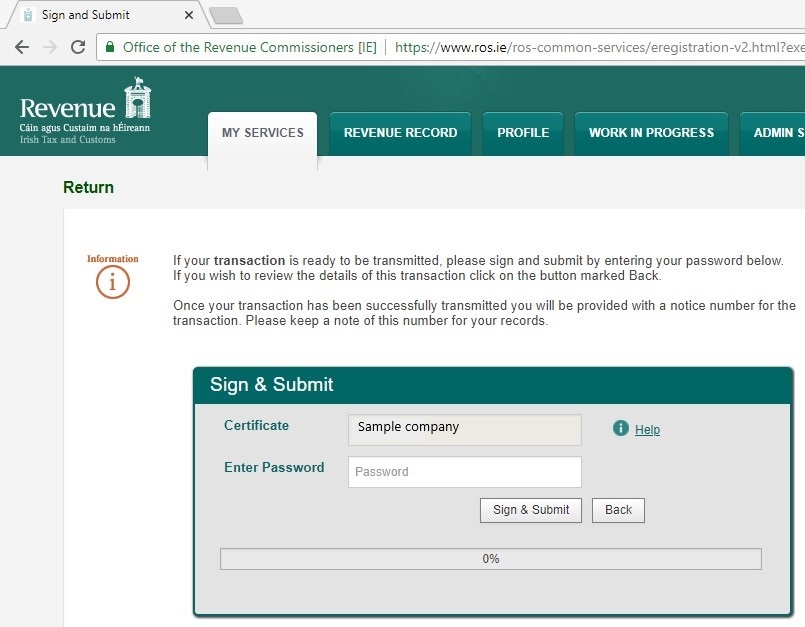
- Once you click Sign and Submit, you will be asked to enter your ROS certificate password to confirm. Enter your password and click Sign & Submit.
- Once submitted you will get a ROS confirmation. You will receive a Notice Number which you can quote to Revenue if you have any problems with the application. You will also receive a copy of this in your ROS inbox. The status on your eRegistration summary should be Success. If you do not see this please contact Revenue.
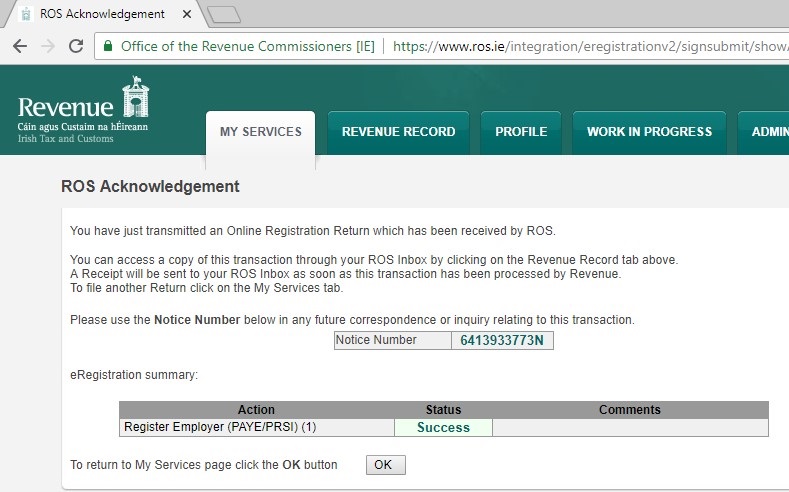
- Once you see the success message, you are finished your additional registration. Revenue will review the application and send you correspondence once the additional Employers PAYE registration has been created.
- For additional information regarding splitting multiple PAYE registration numbers on ROS, please click here.
- For additional information regarding saving and reloading ROS digital certificates, please click here.