
Past payslips ( NOT last updated payslip)
Corrections - Payment was different
Since the introduction of PAYE Modernisation, a dedicated facility is available within Thesaurus Payroll Manager in order to facilitate corrections that may be needed from time to time to your payroll.
The Corrections utility can be accessed by clicking on 'Corrections' on the menu bar: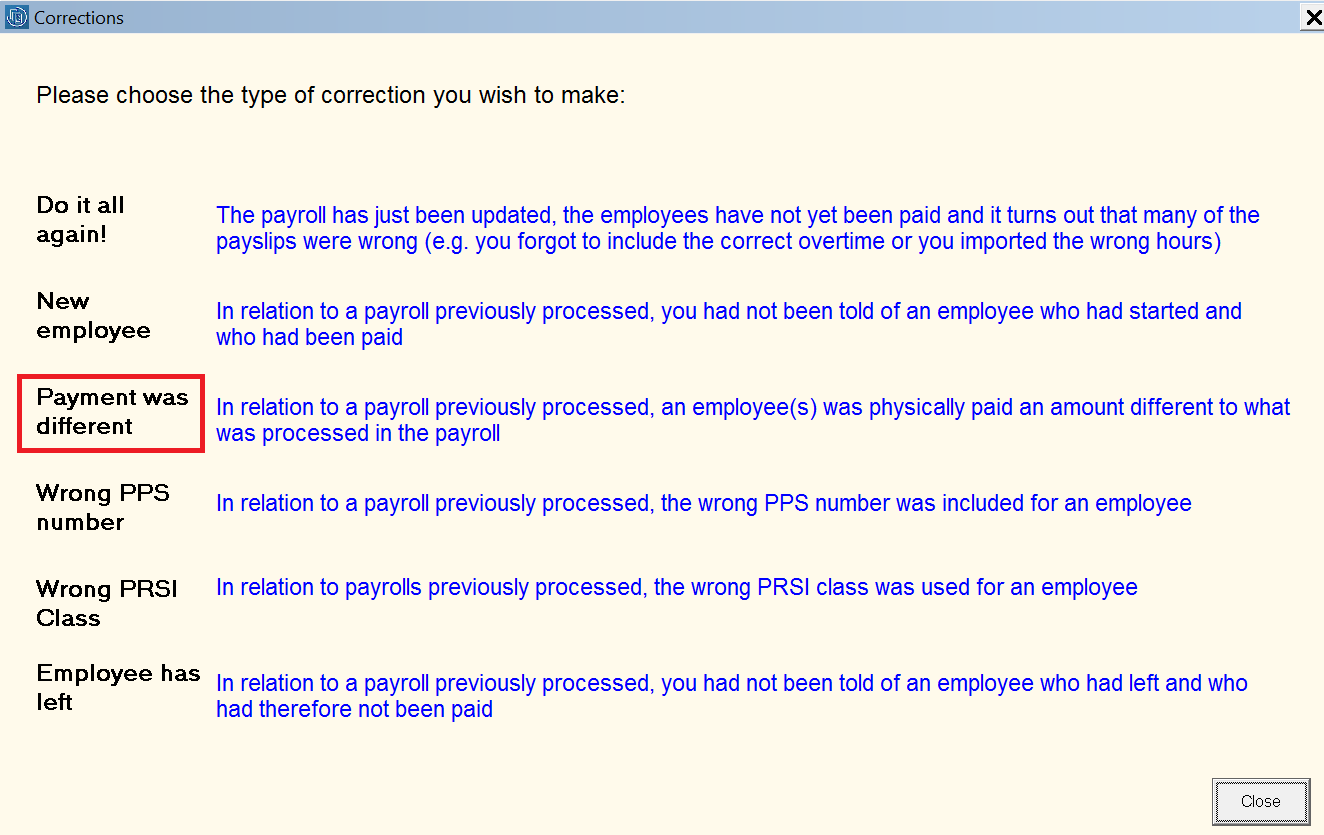
The correction type 'Payment was different' as highlighted above is to be used where, in relation to a pay run previously processed, it turns out an employee was physically paid an amount different to what was processed in the payroll.
To perform this type of correction:
- Select 'Corrections' on the menu bar, then click on the statement for 'Payment was different':
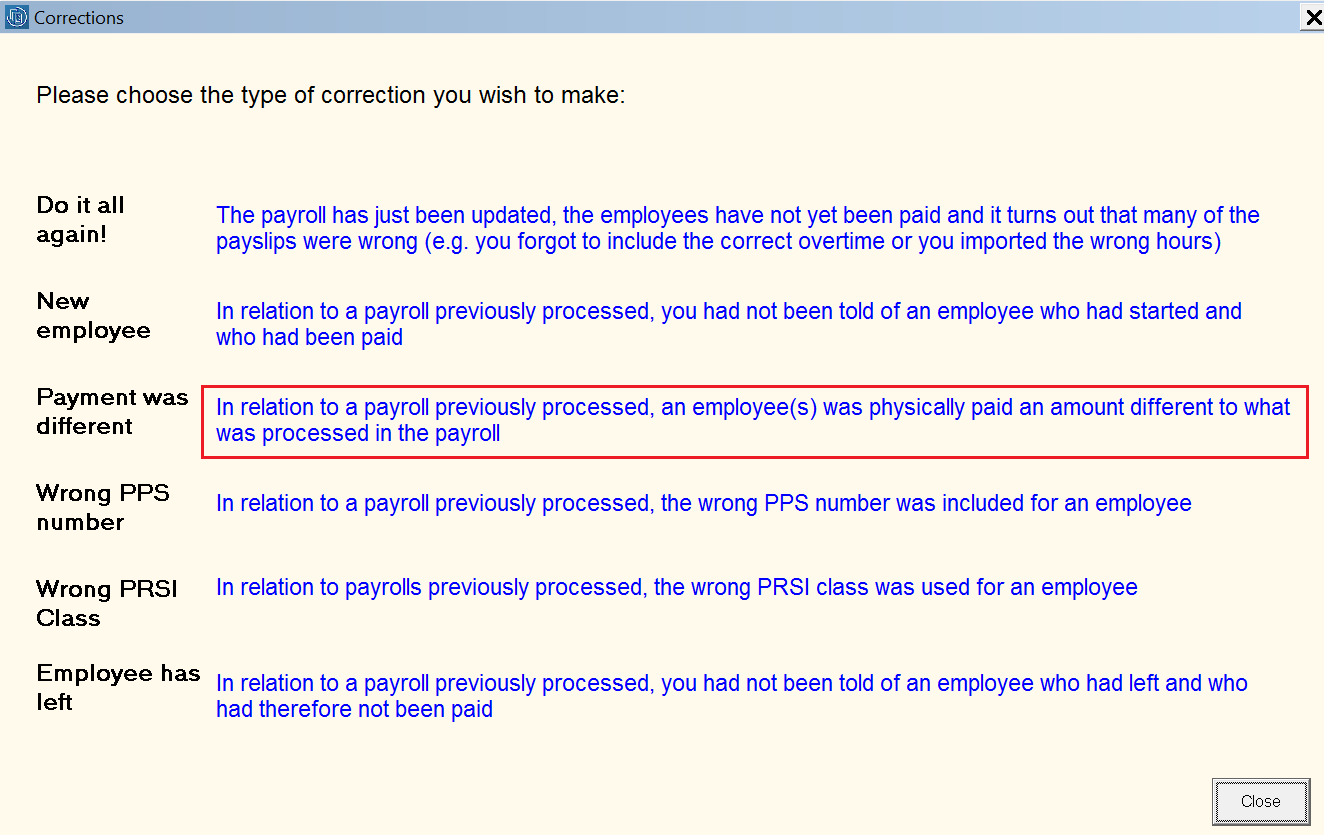
This will open the 'Payment was different' utility.
- Select the period number you wish to make the correction for
- Next, select the employee for whom you wish to make a correction for from the drop down menu
On the left hand side, the selected employee's original payment amount and the associated deductions will be displayed on screen.
- On the right hand side, enter the employee's correct gross pay or net pay accordingly.
a) If entering a net figure, click Calculate Net to Gross
b) If entering a gross figure, click Calculate Gross to Net
c) Alternatively, press function key F10 on your keyboard to edit individual pay items instead
- IMPORTANT – By default, the MyFutureFund amounts will remain unchanged (based on the original Payment amounts) to ensure that what has already been sent to Naersa is protected.
- If you need to unlock the pension (MFF) amounts so they apply to new pay details, this can be done; however, it should be approached with caution because the amounts may need to reflect what was initially paid over to Naersa.
- To do this - untick the option at the bottom of this screen and untick Lock MyFuture Funds amounts. Click Calculate Net to Gross or Calculate Gross to Net and the MFF pension will now be applied to the newly adjusted Gross Pay.
The software will now determine any other applicable deductions based on the corrected pay amount entered.
Please note: the payment amount displayed is before any allowable deductions are deducted (e.g. staff loan repayments) and before any non taxable payments are added (e.g. expense reimbursements).
- If happy to proceed, simply click 'Apply Correction'
- A Correction PSR will now be prepared by the software. If you have no more corrections to make, simply close out of the Corrections utility and access Process Icon No. 6 to submit the correction PSR to Revenue.
- A correction AE contributions submission will not be created - as the amounts are unchanged for MyFuture Fund.
Following the correction
- as soon as this type of correction is applied, the employee's payslip(s) will be updated accordingly to reflect the corrected payslip amounts. NB - The MyFuture Fund Amounts will be unchanged and based on the original amounts entered.
The Print/Email Payslip utility can be accessed by going to Process Icon No. 7 or Payslips > Print/Email Payslips - Similarly, all related payroll reports, such as the **Payroll Summary** report, will now display the employee's corrected pay information, except for AE employee and AE employer amounts, which will remain unchanged based on the original figures.
Important:
You must submit corrections for the PSR as usual. However, if it is after 6:30 PM on pay day, you cannot make a correction for the AE contribution using the payroll software. In such cases, you'll need to contact Naersa directly to make the necessary changes, and they will advise you on what to do next.