
Thesaurus Payroll Manager's payroll journal feature allows users to create wages journals from the finalised payslips and upload into BrightBooks using API .
1) To get started, go to Utilities > BrightBooks > Login:
2a) Enter your BrightBooks User Name and Password in the fields provided, followed by 'Sign in':
2b) In the event you have more than one company connected to your BrightBooks credentials, simply select the applicable company you wish to post your journal to from the drop-down menu:
2c) Close this screen once complete.
3a) Once logged in, you are now ready to map your payroll data items to your relevant nominal account codes in BrightBooks.
- To do so, go to Utilities > BrightBooks > Map nominal ledger
b) Your nominal account codes will be automatically retrieved from BrightBooks.
Several default nominal account code mappings which specifically relate to BrightBooks will already be entered for you.
If desired, these can be changed using the drop-down menus, should you wish to map to different nominal accounts that exist within BrightBooks.
A nominal account code can be used for multiple items.
c) If payments are made to directors, tick the box to indicate this.
Likewise, tick to indicate if you have pension deductions.
Should you wish to post any these pay items to alternate account codes, select the applicable accounts to post to using the relevant drop-down menus.
d) For more detailed mapping, you can also enter some optional nominal account codes to map to, if desired.
e) Click Next
f) The following screen will now allow you to specify the detailed mapping you require - although in the majority of cases you can accept the mapping as proposed by Thesaurus Payroll Manager, which it will have populated from the answers you have supplied on the first screen.
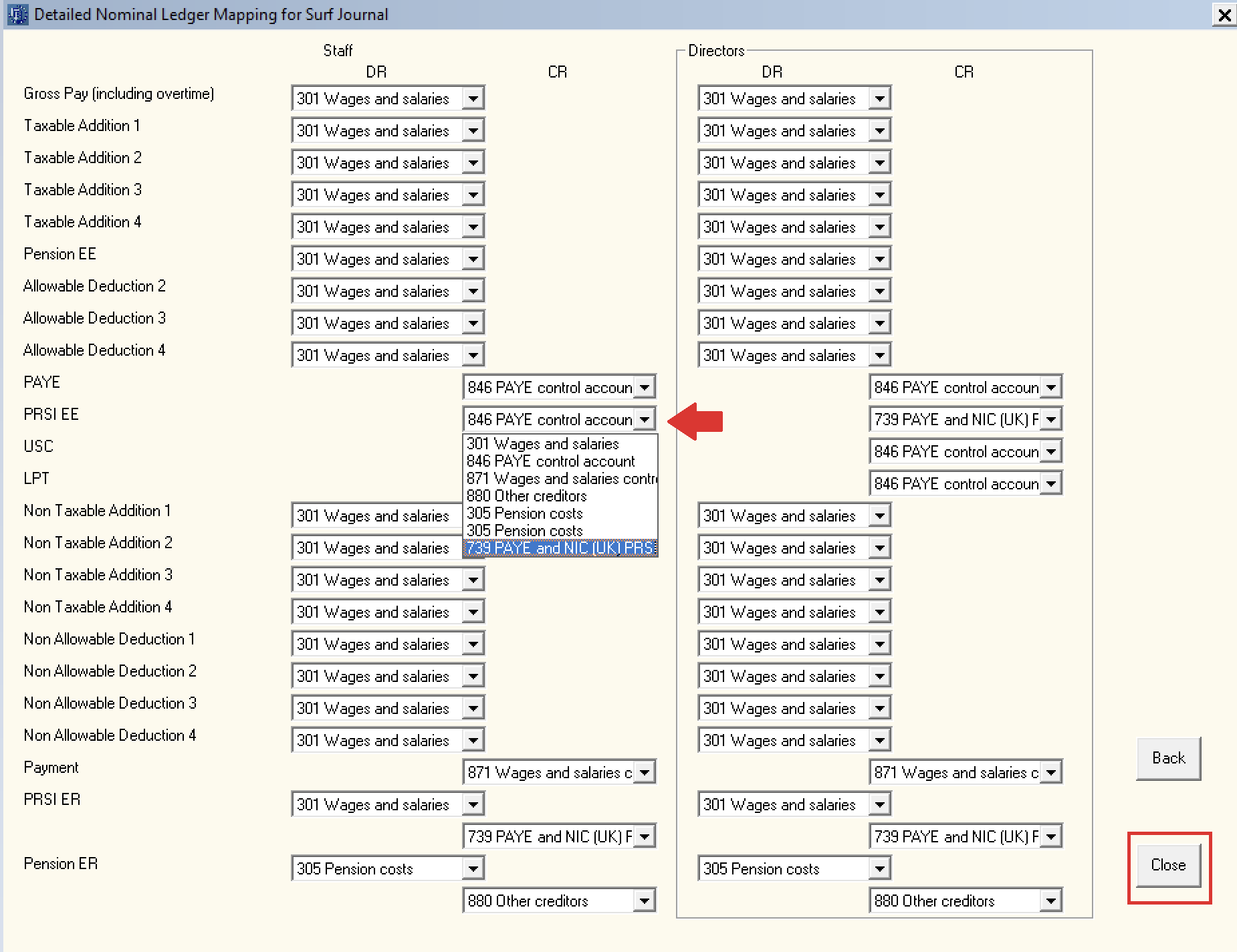
g) Click Close once your mapping is completed.
Please note: once the steps above have been completed, the mapping you have specified will be saved and remembered going forward when posting future journals to BrightBooks.
4a) Once your mapping is complete, simply access Utilities > BrightBooks > Post journal to submit your payroll journal to BrightBooks.
b) Enter the date range for the journal you wish to post - the journal will include records for all payslips (across all pay frequencies) with a pay date within the selected range.
c) Press Prepare/View to preview and prepare your journal - the journal breakdown displayed can be printed if required.
d) Click Post to submit your payroll journal to BrightBooks.
Confirmation will be displayed on screen to confirm successful upload into your BrightBooks account.