
To access this utility, go to Process ICON no. 1:

or Employees > Add/Amend Employees:
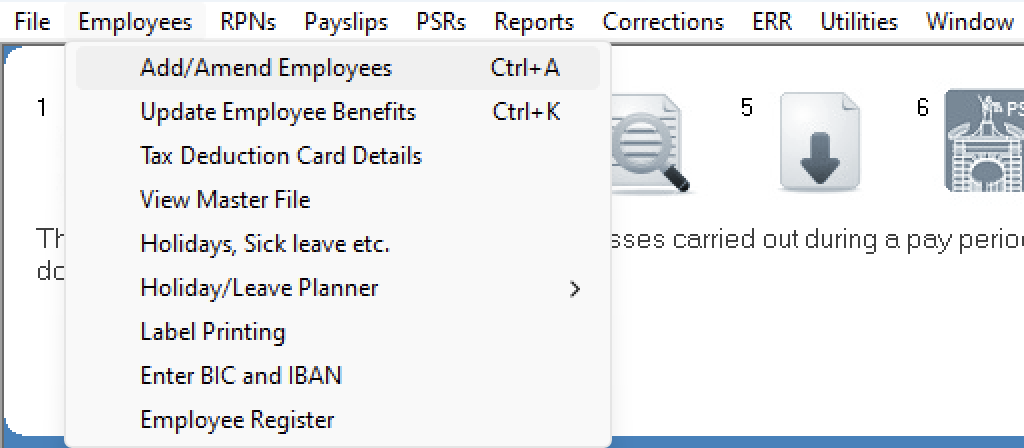
Within the employee record, select the 'Deductions' tab:
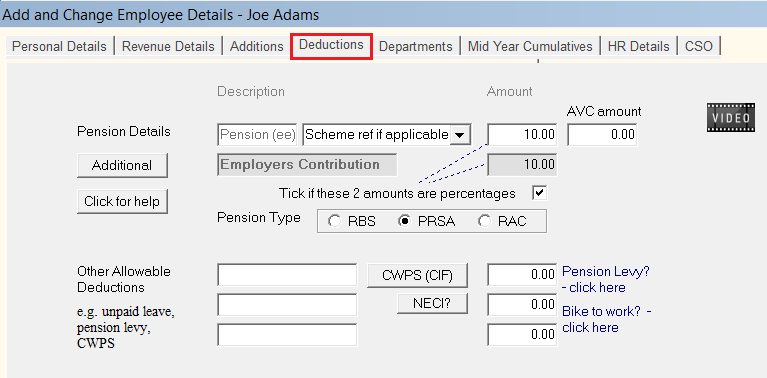
Please note: before proceeding you must first determine if the deduction you wish to set up for an employee is 'allowable' or 'non allowable'.
or Employees > Add/Amend Employees:
Within the employee record, select the 'Deductions' tab:
Please note: before proceeding you must first determine if the deduction you wish to set up for an employee is 'allowable' or 'non allowable'.
Pension Deductions
- For assistance with setting up general pension deductions for an employee, click here
- For assistance with setting up CWPS deductions for an employee, click here
- For assistance with setting up NECI deductions for an employee, click here
Allowable Deductions (General)
- Enter a Description of the Allowable Deduction e.g. cycle scheme, unpaid leave
- Enter the Amount
- If this is a once off deduction, remember to revert the amount entered to zero in the next pay period
Non-allowable Deductions
- Enter a Description of the Allowable Deduction e.g. union fees, loan etc.
- Enter the Amount
- If this is a once off deduction, remember to revert the amount entered to zero in the next pay period
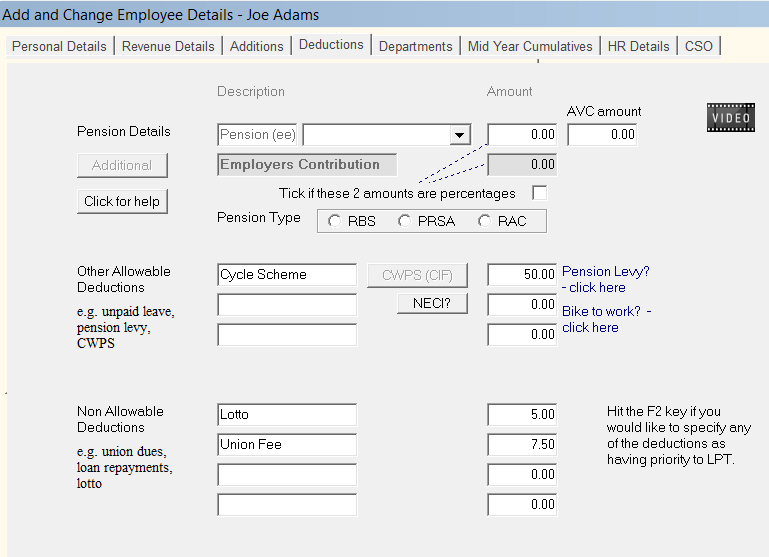
All deductions entered will appear separately on the employee's payslip.
Specifying end dates for Deductions
A utility is available within the software which allows you to specify a date on which a particular deduction should end.
This is a useful feature for such items as the bike to work scheme or staff loan repayments.
For assistance with this, click here